A six-second teaser ad from one still with AI video
Turn one product picture into a short teaser: pick the frame, add one camera move and one light change, put words in an editor, cut tall and square copies.
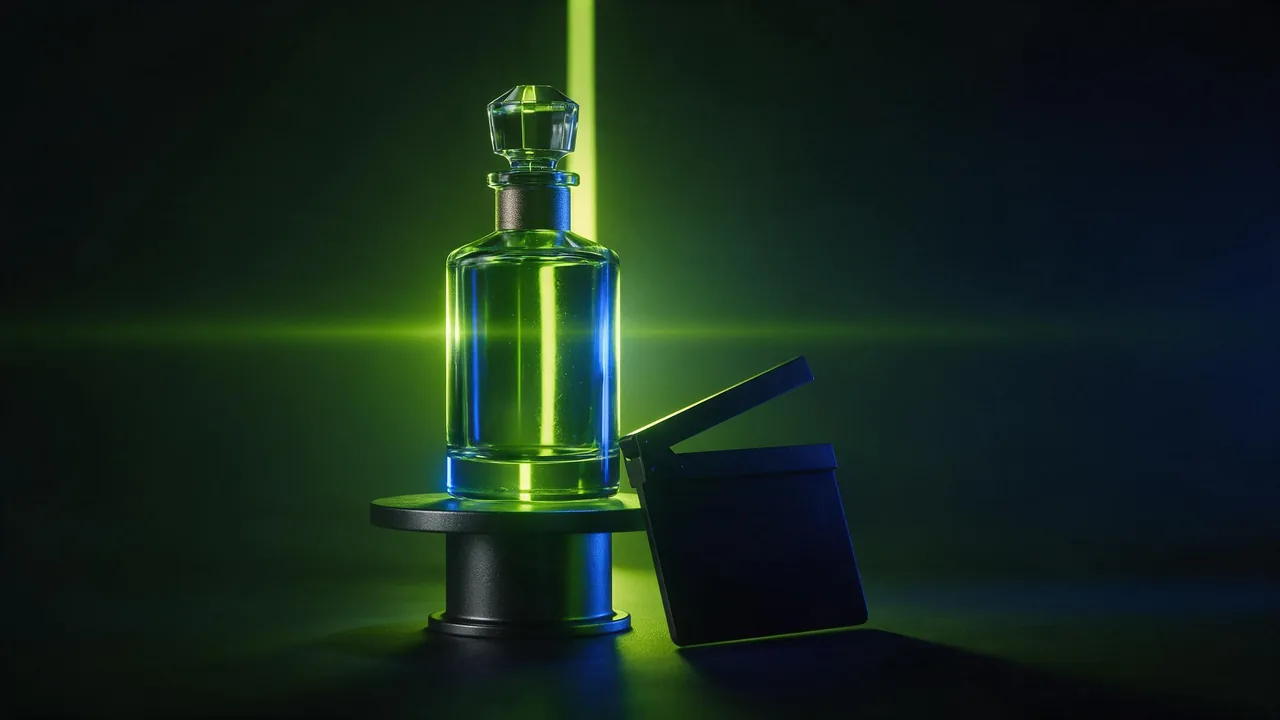
A teaser ad is a small promise: one thing, one feeling, gone before anyone scrolls away. That makes it a good fit for AI video, because the part the model is bad at, a story with several beats, is the part a teaser does not have. What it needs is a single picture that already looks like the brand, and a clip that does one thing to it.
This is the order I would work in. The length of the finished spot is your call in the editor; the studio only makes short clips, so plan the teaser as one clip, maybe two, never as a scene. The recipe has five steps, and the last two happen outside the studio.
1. Choose the frame like a poster
The still is the whole ad. Whatever is in it will be in the clip, and whatever is missing the model will invent. So pick a frame that works as a poster on its own: one subject, a calm background, empty space where the words will go later.
- One subject, big in frame. Small details turn to mush once they move.
- Quiet background. A plain surface, a soft gradient, a wall. Busy shelves will shimmer.
- Room for the line. Leave a clear third of the frame, top or bottom, for text you will add yourself.
- No lettering in the picture. Video models redraw writing frame by frame and it drifts. Put your own text in afterwards, never in the render.
If you do not have a photo, make the still first. A text-to-image model gives you the poster in a few tries, and an image edit model can fix the one thing you dislike, a stray reflection or the wrong colour of the label, before any video money is spent.
2. Give the clip one camera move
A teaser has no time for a tour. Choose one move, say it once, and say the subject stays put: a slow push-in, a gentle orbit, a rise from low to eye level. Two moves in one short clip fight each other and the clip wobbles. The wording for each move, and the ones that confuse models, is in nine camera moves for AI video.
Slow push-in on the bottle standing on the dark plinth, the camera moves straight toward it and stops close. The bottle does not move or rotate. Clean empty background, shallow depth of field.3. Give it one light change
Movement catches the eye; a change of light holds it. A glint that travels across glass, a rim light that comes up behind the subject, a soft reveal from shadow. Pick one source and one direction, and let it happen while the camera moves. Light prompts are where clips flicker, so keep them plain: light changes in AI video without flicker lists the words that stay smooth.
A single lime-coloured beam of light slowly sweeps across the glass from left to right, leaving a bright glint along the edge of the bottle, then the light settles to a soft even glow. No other light changes.4. Animate the still, not a description of it
Send your picture to an image-to-video model so the clip starts from your exact frame. Kling V4.0 image-to-video takes a first frame and a prompt, and P-Video-2 image-to-video has a draft toggle for fast, rough previews. Render two or three drafts, keep the seed or the wording of the best one, then spend on the finished clip. Draft, lock, finish covers that loop.
Put the camera and light sentences together in one prompt, camera first. If the result drifts away from your product, shorten the prompt rather than lengthening it; every extra adjective is an invitation to change something.
5. Add the words in an editor
The studio renders pictures and clips; it does not set type. There is no caption tool, logo overlay or text layer here. That is a feature for an ad: the words stay sharp and spelled correctly because a real editor draws them over the clip, not a model.
- Download the clip and open it in any video editor, on your phone or computer.
- Place the product name or one short line in the empty third you left, with a clear font and strong contrast.
- Fade the text in after the move has started and hold it through the calm ending, so people read it on a steady picture.
- Add music or a sound hit on the light change. Treat audio as an editor job.
Cut a vertical and a square copy
Cropping a wide clip down to a tall one throws away most of the picture, and the subject you centred may end up cut off. It is better to plan for the three shapes up front.
- Compose in the middle. Put the subject in the centre third of the poster so a narrow crop still holds it.
- Make a still for each shape. Ask the image edit model to extend or recompose your poster into a tall one and a square one, or generate each directly, so the empty text area sits where the new frame needs it.
- Pick the frame shape on the model page. Many video models offer a choice of tall, square and wide; some follow the shape of your first frame. The model page shows which it is, so check before you render.
- Render each copy separately. The same prompt on each still is usually enough, and the three clips match closely because the poster, the move and the light are the same.
- Reposition the text per copy. In the editor, move the line to the safe area of each shape, and keep it away from the edges that apps cover with buttons.
Browse what each model accepts in the catalog. It lists inputs and settings per model, and the shape options differ.
What the studio cannot do
It cannot add text, a logo or music to the clip, and it cannot join your clips into one file; do that in an editor. It will not guarantee that a brand mark or a label in the picture survives the motion; small logos often warp, so keep them large or add them afterwards. And it will not give you the same clip twice from the same words unless the model offers a seed, so keep what you like when you get it.
Questions
Can I make a short ad from one picture with AI video?
Yes. Choose a clean poster-like still, send it to an image-to-video model, ask for one camera move and one light change, and add your text and music in a video editor afterwards.
Should the text be in the picture or added later?
Later. Video models redraw lettering in every frame and it drifts or garbles. A real editor keeps your words sharp, and you can restyle them for each version.
How do I get a vertical and a square version?
Make a still in each shape, from an image edit model or generated directly, and render each with the same prompt. Cropping the wide clip afterwards loses the subject more often than not.