An animated Halloween greeting video with AI, without the flicker
A spooky greeting clip where the pumpkin keeps its face and the house its windows: one still first, a small motion prompt, a loop, and the words added last.
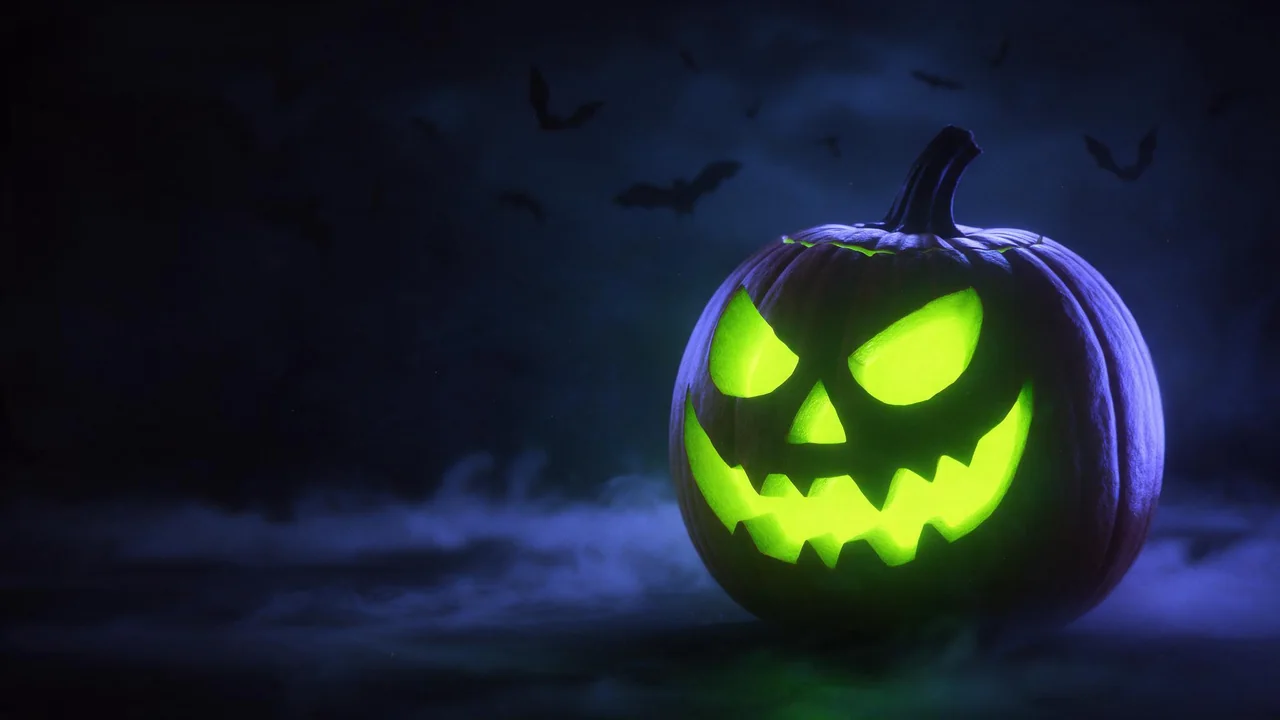
A Halloween greeting is the kind of clip people make once a year, in a hurry, the evening before they send it. Type "spooky animated Halloween card with a pumpkin, bats and a haunted house" into a text-to-video model and you usually get something lively and wrong: the pumpkin grows a new mouth halfway through, the house gains a tower, the bats melt into the sky, and the whole frame shimmers as if it were drawn again on every frame. Which, in a way, it was.
The fix is not a better adjective. It is a different order of work: decide the picture first, as a still, and only then ask a video model to move a few things inside it. Here is that order, step by step, for a greeting of a few seconds that you can send to a group chat or post as a looping story.
Why text-to-video boils
With text alone, the model invents the pumpkin, the house and the sky while it animates them, and nothing pins those inventions down. Small details are the first to drift: carved teeth, window panes, the edge of a cape. Animators call it "boiling". The more things you ask to move, and the busier the scene, the worse it gets. A still image as the first frame gives the model something to keep instead of something to invent.
Step 1: make the still, and treat it as the final card
Generate the scene with an image model such as Nano Banana 2.1, in the shape you will send it: tall for a story or a phone, wide for a message or a screen. Keep it simple, with one main character, a clear background and a big empty area where your greeting will go later. Bold shapes and flat colours animate far more calmly than fine texture, fur and smoke.
A cosy cartoon Halloween scene at night: one large carved pumpkin with a friendly grin sits on a stone garden wall, a small crooked house with two lit windows behind it, a crescent moon, three small bats. Flat colours, clean outlines, soft orange and indigo. Large empty dark sky in the upper third. No text, no letters.Look at the still the way your friends will look at the clip. A crooked tooth, a bat with three wings or a smudge on the wall will not get better when it moves; fix it now, with an edit model such as Nano Banana 2.1 edit, or roll again.
Step 2: move two or three things, and name them
Give the still to an image-to-video model such as Kling V4.0 image-to-video and write the prompt about motion only. Do not describe the scene again; the picture already does that, and a second description invites the model to redraw it. Pick a few small movements, say where they happen, and say what stays still. A locked camera is the single biggest help, and the camera moves guide has the exact words.
Static camera, locked. The three bats flap slowly across the sky from left to right. A thin layer of low fog drifts along the bottom of the wall. The pumpkin, the wall and the house do not move. The glow in the windows stays steady.Good greeting motions are small and repeatable: bats crossing, fog drifting, leaves falling, a cat's tail swaying on the wall, a ghost bobbing gently up and down. Risky ones are faces that talk, hands that wave, characters that turn around, and anything that "transforms". A glow that pulses is its own trap; if you want the pumpkin to light up, read light changes without flicker first.
Step 3: close the loop with the same frame at both ends
A greeting that loops can play forever in a chat without a visible jump. Give the model the same still as the first and the last frame: Kling V4.0 image-to-video takes an optional last frame, and Vidu Q3 start-end-to-video is built around a start and an end image. The model then has to bring every bat and every wisp of fog back to where it started, which also keeps the scene from wandering off in the middle.
- Choose motions that can return: a ghost bobbing up and back, fog drifting and settling. A bat that flies out of frame cannot come back on its own.
- Keep the clip short. The longer it runs, the more room the model has to drift before it has to come home.
- Play it on repeat before you send it. If the seam jumps, re-roll with fewer moving things rather than more words.
Step 4: add the words and the sound outside the model
Do not ask a video model to write "Happy Halloween". Lettering is the first thing that shimmers, swaps letters or spells a new word every second. Put the text on afterwards, in the empty sky you kept in step 1, with any video editor or the text tool of the app you send it from. The text then stays sharp on every frame, and you can make one version per language or per friend from the same clip.
Sound works the same way. Some video models return a clip with sound of their own, and it is rarely the creak or the jingle you had in mind; mute it and lay your own track in the editor. A loop also needs sound that loops, so pick a short cue that starts and ends quietly.
What the studio does not do
Ineveo renders the still and the clip. It has no timeline and no text layer, so the greeting text is always added in another app, and so is the track you picked to play under it. There is no deflicker or stabiliser either: if a render boils, the fix is a cleaner still, fewer moving things or another model, then a new render. Try the motion on a short, cheap draft before the clip you will send; the draft, lock, finish workflow explains that habit, and every video model with its inputs is in the catalog.
Questions
Why does my AI Halloween video flicker and change shape?
With text alone the model invents the scene while it animates it, so small details drift from frame to frame. Start from a still, keep the camera locked and move only a few named things.
How do I make an AI greeting video loop smoothly?
Use a model that takes a first and a last frame, give it the same still for both, and choose motions that can return to where they started, such as bobbing or drifting.
Can the video model write Happy Halloween on the clip?
It can try, but generated letters often wobble or misspell. Leave empty space in the still and add the text in a video editor afterwards.